
Google Sheets & Excel import
This guide shows how to pull LineupAPI data into spreadsheets without any programming.
You have two common approaches:
- Download CSV from a URL, then import
- Import CSV directly in App (more powerful, slightly more steps)
A) Google Sheets
Option A1: IMPORTDATA (good for frequent updates)
In a cell, use:
=IMPORTDATA("https://api.lineupAPI.com/v2/predictions/f61793bf-59e8-4d1b-81bd-458a1fd138dd/?groups=all&apiKey=YOUR_API_KEY")
Important
Replace YOUR_API_KEY with your real key from the dashboard.
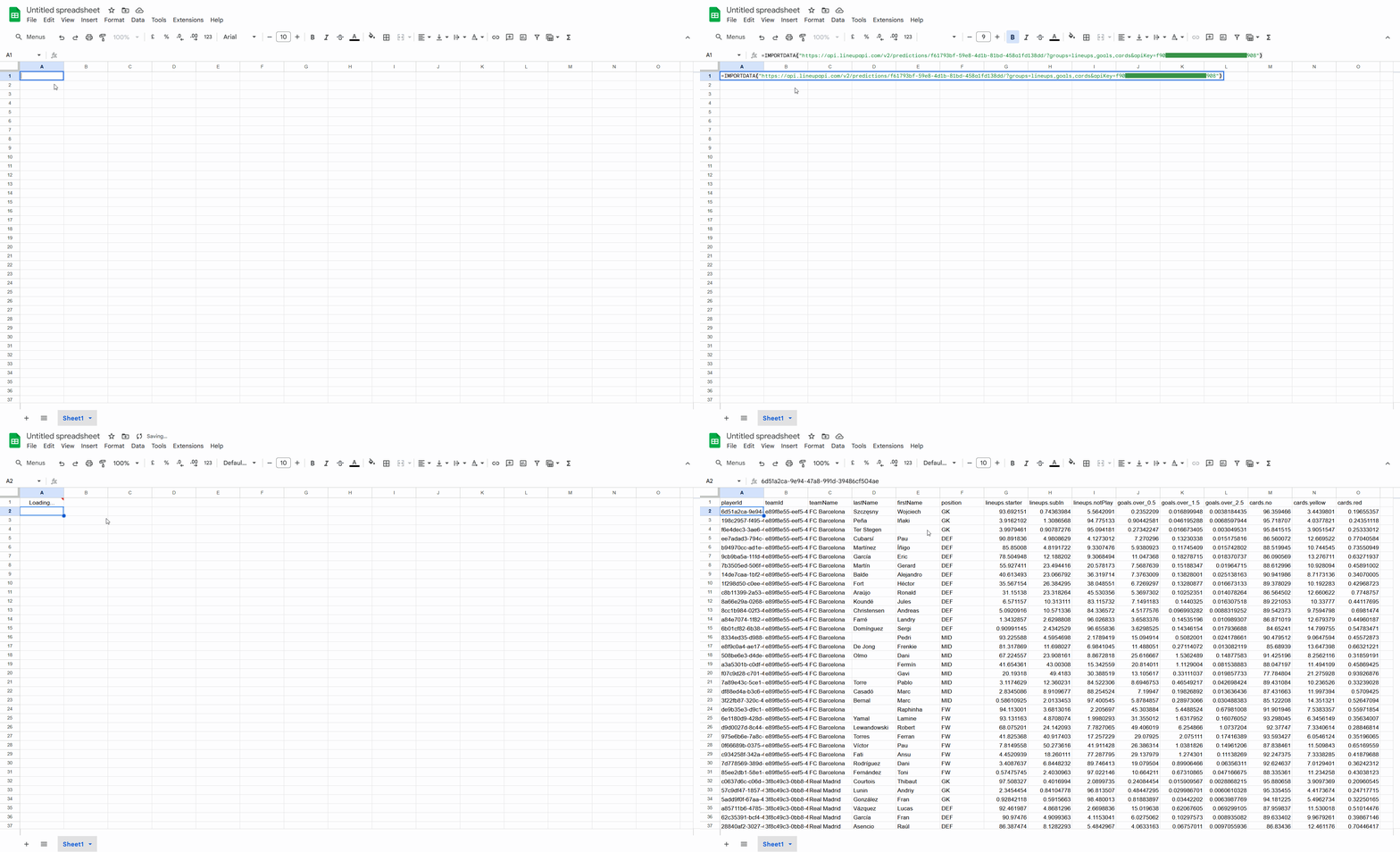
Option A2: “File → Import” (manual)
- Open the CSV URL in the browser
- Download the file
- In Google Sheets: File → Import → Upload and select your CSV
B) Excel (Power Query) — recommended
Power Query is Excel’s built-in data importer/transformer. It’s great for pulling CSV from a URL and refreshing it later with one click.
Step 1 — Data → Get Data
Excel: Data → Get & Transform → New Query → From Other Sources → From Web
Or sometimes: Data → Get Data → From Web
Paste your CSV URL, for example:
https://api.lineupapi.com/v2/predictions/f61793bf-59e8-4d1b-81bd-458a1fd138dd/?groups=all&apiKey=YOUR_API_KEY
Important
Replace YOUR_API_KEY with your real key from the dashboard.
Step 2 — Transform (optional)
In the Power Query editor you can:
- Rename columns
- Change data types (number / text)
- Filter rows
- Split columns
Tips
If you request groups=all, the CSV will contain more columns. If you want a smaller table, request only the groups you need.
Step 3 — Load
Click Close & Load to import the table into Excel.
To refresh later: Data → Refresh All
Next steps
1) Fetch upcoming fixtures (get valid fixtureId)
Open this in your browser (or import it as CSV the same way as above):
https://api.lineupAPI.com/v2/fixtures/?apiKey=YOUR_API_KEY
This response contains the upcoming fixtures and their fixtureId.
2) Fetch predictions for a specific fixture
Pick any fixtureId from the fixtures response and put it into the predictions URL:
https://api.lineupAPI.com/v2/predictions/{fixtureId}/?groups=all&apiKey=YOUR_API_KEY
Important
Replace {fixtureId} with a real fixture UUID from the fixtures list (field: fixtureId), for example: f61793bf-59e8-4d1b-81bd-458a1fd138dd
Security note
Spreadsheet queries can expose your apiKey if you share the file.
Recommendations:
- Store your key in a hidden/protected sheet (or don’t include it at all in shared files).
- Don’t publish a sheet publicly with the key embedded in a URL.
- In case your key was leaked, go to your dashboard and regenerate a new API access key.